
In this article, you will be able to learn how to download any PureData Dashboard contents into excel or .csv file.
- Go to the Dashboard you wanted to download
- Click on Download Data (Custom Fields) button

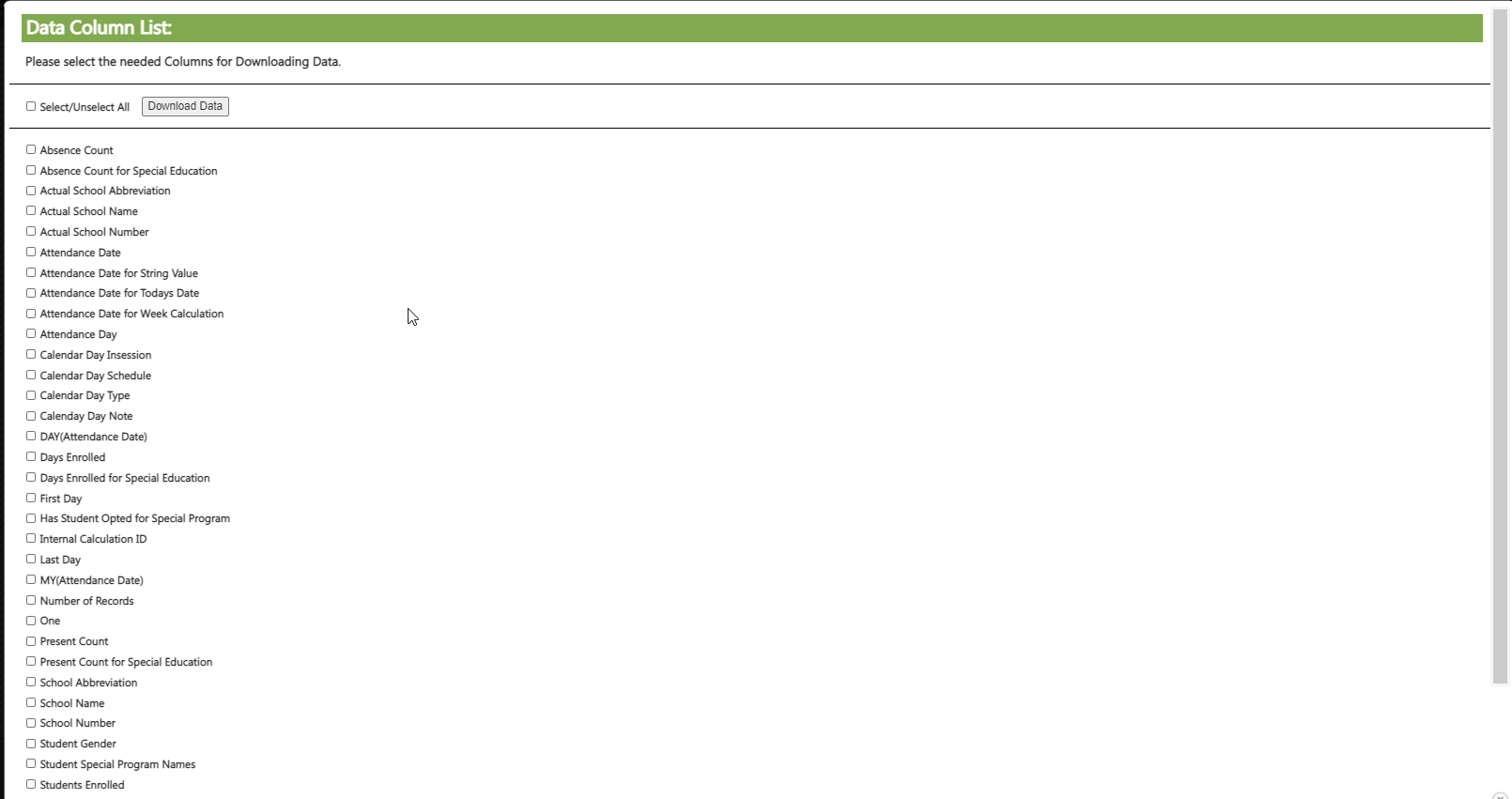
- Choose the columns you wanted to be included in your excel/ csv file by selecting Select All or selecting the columns manually. Once columns were selected, click Download Data.
- Choose the location where you wanted to save the file in your computer then click Save.
Still have questions? Please send an email to the PureData support team.