
In this article, you should be able to learn simple troubleshooting steps on resolving issues regarding the scrolling functionality of the PureData Dashboards.
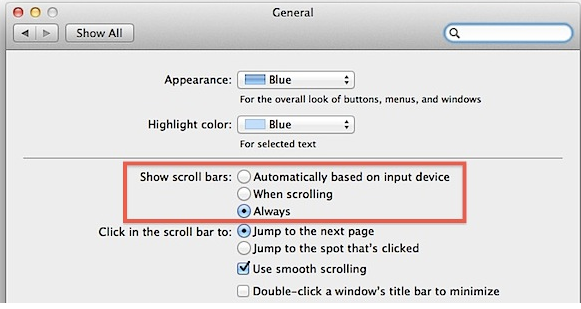
MAC OSx users usually encounter the issue wherein scroll bars in the PureData Dashboards are not visible, therefore, users are unable to scroll through the data. To fix this, please make sure that "Show Scroll Bars" function is enabled in your computer.
- Click the Apple menu at the top-left of the screen, then select System Preferences
- Next, select the General preferences pane; it’s the very first one, up at the top.
- Under the “Show scroll bars” heading, you’ll find three options: “Automatically based on input device,” “When scrolling,” and “Always.”
- Go ahead and select that last “Always” option.
- Refresh or relaunch the PureData Dashboards. You should be able to see the scroll bars, therefore should be able to scroll through data.
Still having issues? Please contact us by clicking here.