
PowerSchool needs Flash to be ran in order for it to function well. In this article, you should be able to learn how to enable Flash for PowerSchool in a Chrome browser and learn how to resolve issues regarding missing buttons in PowerSchool.
Installing Flash Player in your Computer:
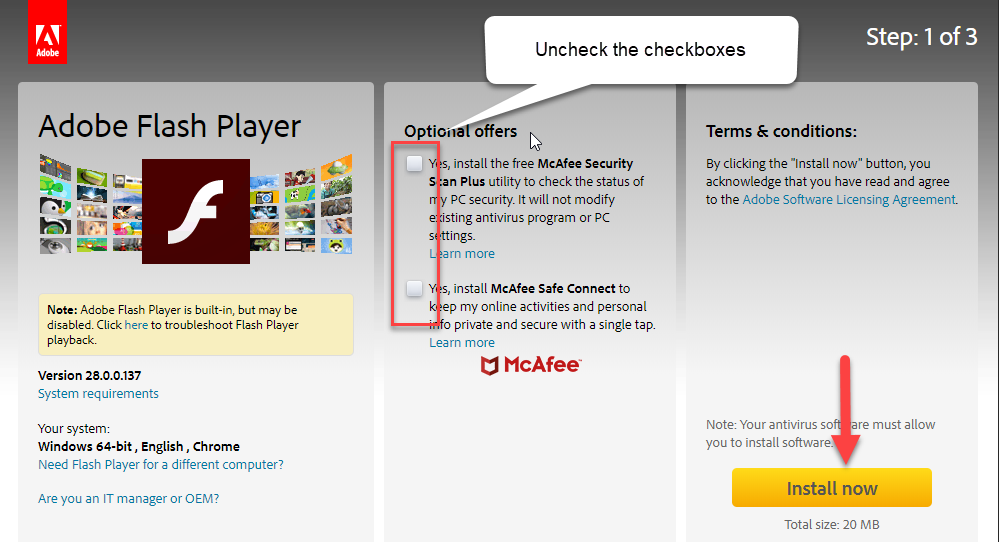
1. Go to https://get.adobe.com/flashplayer
2. Uncheck all check boxes under Optional Offers and click Install
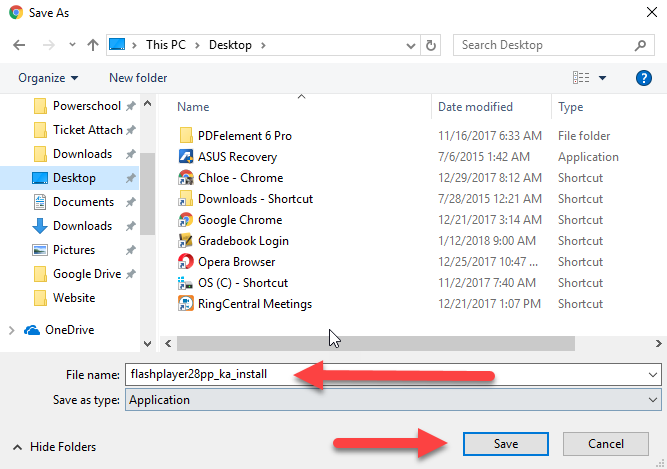
3. Save the file in your computer
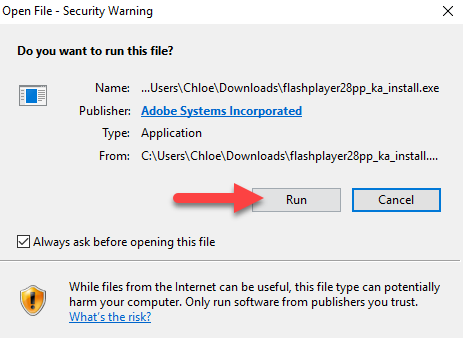
4. The file will open at the bottom of your browser, please click on it

5. Click Run
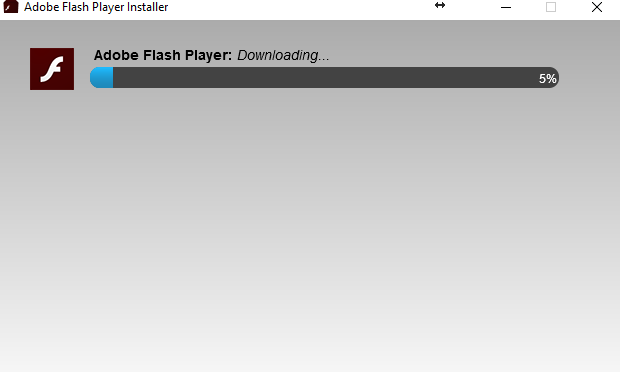
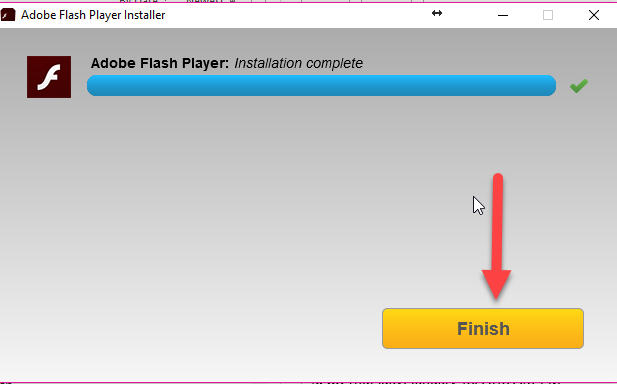
6. Click Finish once installation has completed.
Enabling Flash Permission in your Chrome browser:
1. Go to Options in Chrome (3 dots at the upper right corner of your Chrome browser) then go to Settings
2. Scroll down and click Advanced and click on Content Settings
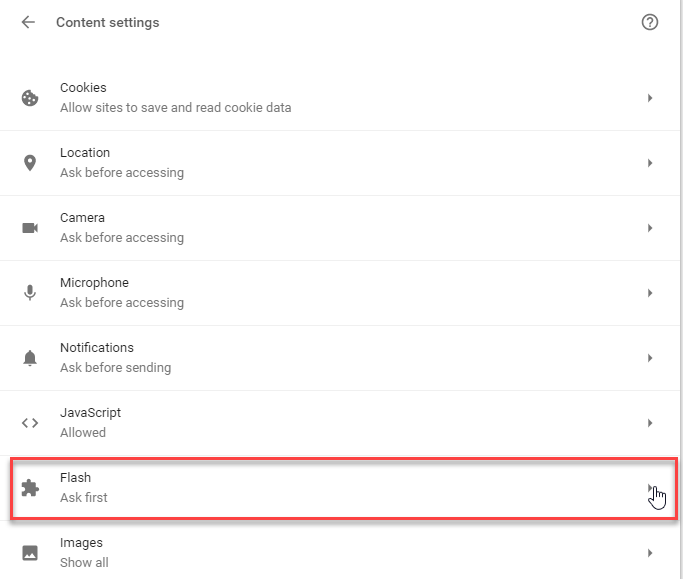
3. Click Flash
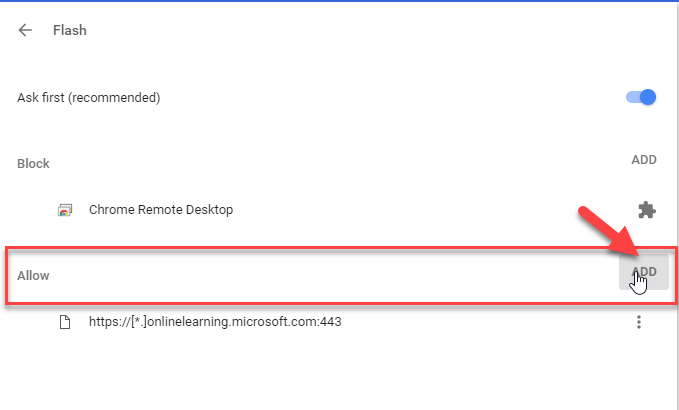
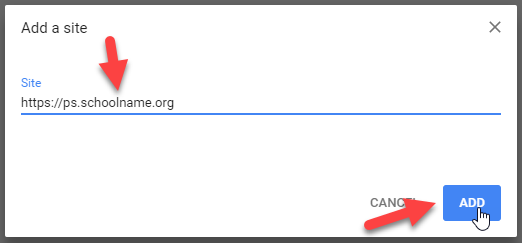
4. Click on Add under Allow and enter your PowerSchool URL (eg. https://ps.schoolname.org)
5. Close all your Chrome windows then open PS Admin and check if the buttons are already available.