
Powerschool Knowledge Article
Created: 10/31/2016
Quick Reference Guide
In this article, you should be able to learn how to add an Attendance Tracking Method in PowerSchool Portal.
School Setup
- Set up (or verify existing) attendance code categories for unexcused absence, unexcused tardiness, and/or illness absence.
- Set up (or verify existing) attendance codes for unexcused absence, unexcused tardiness, and/or illness absence.
- Absent attendance codes must be assigned an Absent presence status.
- Tardy attendance codes must be assigned a Present presence status.
- Only one attendance tracking mode (Daily, Meeting) can be chosen for your school. Choose the mode used as the default for your school. The student's FTE is not used to determine the mode.
- Unexcused tracking categories can track absences or tardiness. These values correspond to the absent and present status of attendance codes.
1. Select school under setup

2. Select Attendance tracking and notification.
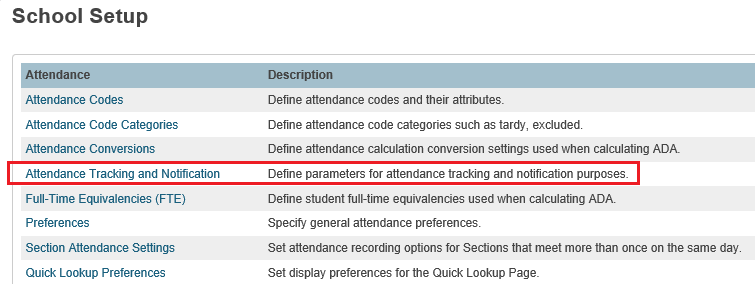
3. Select Attendance Mode

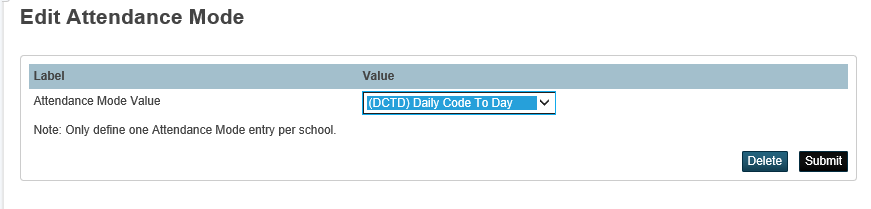
4. Select the appropriate Interval and click on Submit.
Set to (MPTD) Meeting Period Time to Day – to set report to per period basis.
Set to (Daily Code To Day) - to set a per day report
6. Go back to the Attendance Tracking and Notification page.

7. Select which attendance codes will trigger as Unexcused and click on Submit.

9. Go back to the Attendance Tracking and Notification page.
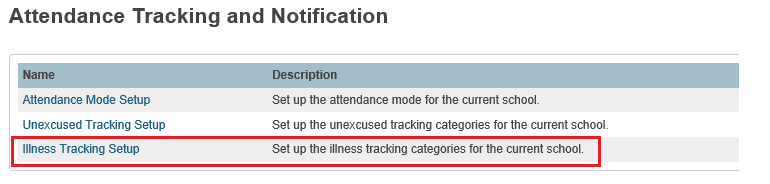
10. Select which attendance codes will trigger as Illness and click on Submit.
